Ticket Detail
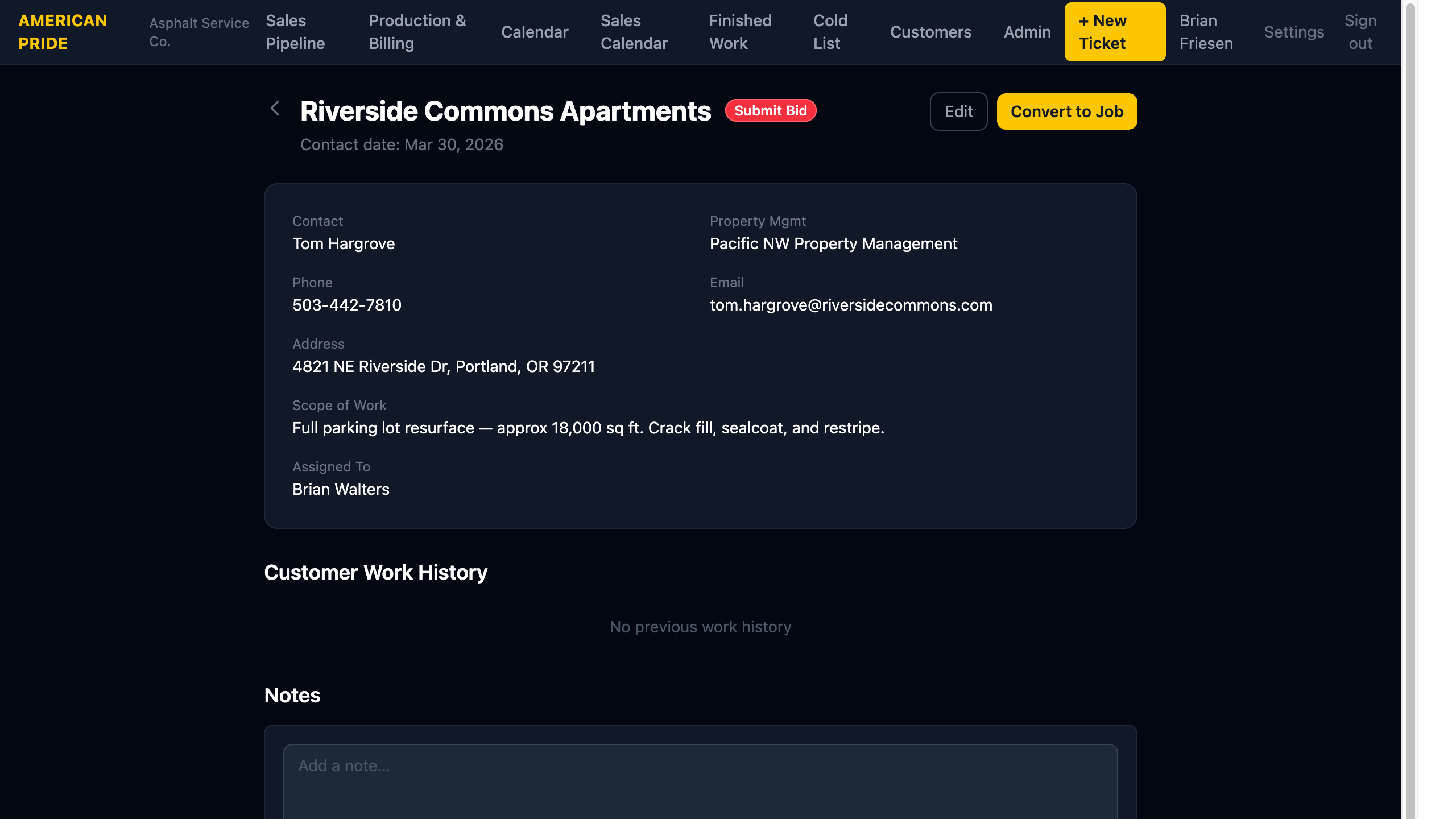
The Ticket detail page shows all information for a single customer contact, including contact details, scope of work, work history, and notes.
Header
The property name and current status badge appear at the top. The contact date is shown below.
Buttons:
- Edit — Update any ticket field (status, scope, assignee, contact info, etc.)
- Convert to Job — Promote this ticket to a Job when the customer agrees to proceed. See Converting to a Job.
Customer Info Panel
Shows the customer's contact details:
- Contact name (links to the Customer record)
- Property Management Company
- Phone and alternate phone
- Property address
- Scope of work
- Assigned staff member
Customer Work History
If this customer (matched by property name or contact name) has prior tickets or jobs in the system, they appear here. This gives staff a quick view of the full relationship history without needing to search separately.
Notes
The Notes section is where you log every interaction with the customer.
Adding a note:
- Type your note in the text area.
- Set the Note date (defaults to today).
- Optionally set a Follow-up due date — this date appears on the Sales Calendar to remind you when to reach out.
- Click Add Note.
Notes are displayed in reverse chronological order. Each note shows the date and due date (if set). You can Edit or Delete any note.
Follow-up Discipline
Every time you contact the customer, add a note with what was discussed and set a follow-up due date. This keeps the Sales Calendar accurate and ensures nothing slips.