User Management
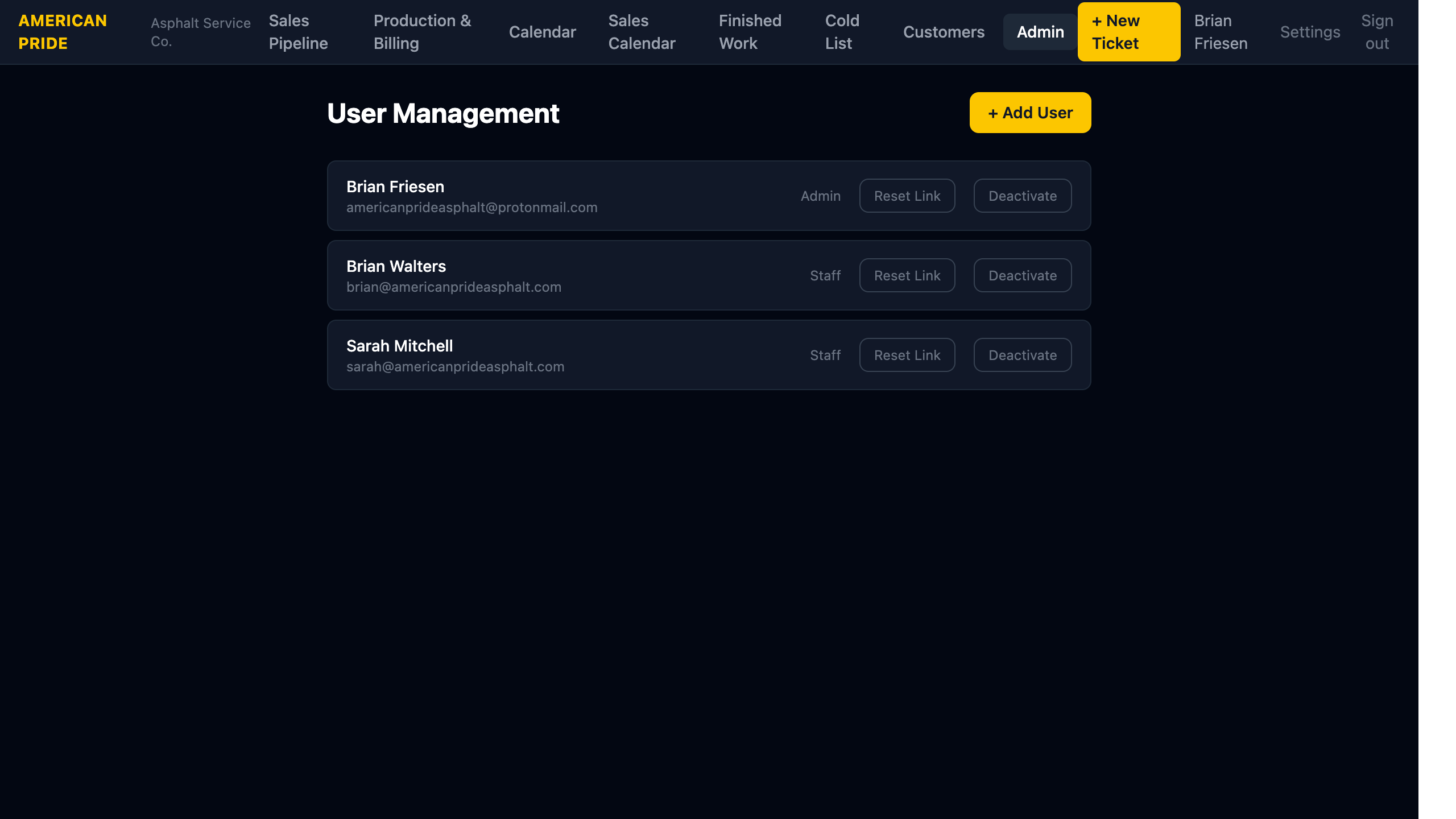
The User Management page is visible only to Admin users. It lists all staff accounts and lets admins add users, send password reset links, and deactivate accounts.
Viewing Users
Each row shows the user's name, email, and role (Admin or Staff).
Adding a New User
- Click + Add User.
- Enter the new user's first name, last name, email address, and assign a role (Admin or Staff).
- Set a temporary password or use the password reset flow.
- Click Create User.
The new user can now log in at the app URL with their credentials.
Sending a Password Reset Link
Click Reset Link next to any user to generate a password reset link. Send this link to the user so they can set a new password. The link expires after a short time.
Onboarding New Staff
The recommended flow for new staff is: create the account, then immediately send a Reset Link so they can choose their own password on first login.
Deactivating a User
Click Deactivate to disable a user's account. They will no longer be able to log in. Their data (tickets, notes, assignments) is retained.
Admin Only
The User Management page is only accessible to users with the Admin role. Staff users will not see the Admin link in the navigation.